 qplanner
Musicbrainz and the creator
We're starting off 2026 with one final bit of data clarity.
- Musicbrainz for each artist
- Import stage times editor rework
- Other changes in the creator
- What's coming next
Musicbrainz for each artist
It's all very well that qplanner can fetch information on tens of thousands artists; but from to time you'll still end up with the info for a very similarly named, but different group. Oops!
With this update the last piece of the jigsaw puzzle is in place, and a years old misstep has been resolved.
I've updated the creator to allow you to verify and manually assign the Musicbrainz ID (MBID) for each artist, or collaborator.
qplanner will automatically try to get the matching Musicbrainz ID for each artist in the event.
You should expect some artists to not be found, simply because qplanner hasn't seen them before.
For ones that aren't found, you'll have to spend a little bit of time manually setting them, but it is easy to do.
Artists
The Artists section now looks like this:
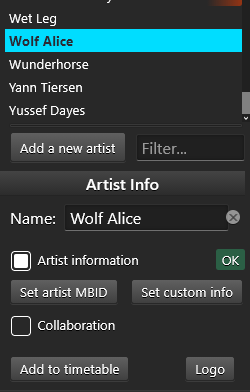
There's a new Filter input, to help you quickly find the artist you're looking for.
(And you can search for ? to find artists without information)
Next to the Artist Information checkbox you'll see a new OK or Not found indicator.
Not found just means that qplanner doesn't have knowledge of this act, it's very likely that Musicbrainz will, so it'll be quick to fix.
Whilst the vast majority of acts will be shown as OK, you may wish to confirm it has picked the correct matches.
If you have Artist Information turned off for an act then there will be no indicator to display.
In the artist list you'll see icons that reflect these indicators:
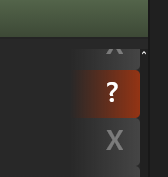
When information hasn't been found you'll see ? next to artists, and an X where artist info has been turned off.
To keep things clean, when things are OK, no indicator will be shown.
(It's perfectly fine to have artist info turned off, if you want it that way!)
The Musicbrainz Picker window
Clicking the Set artist MBID button will open the Musicbrainz Picker.
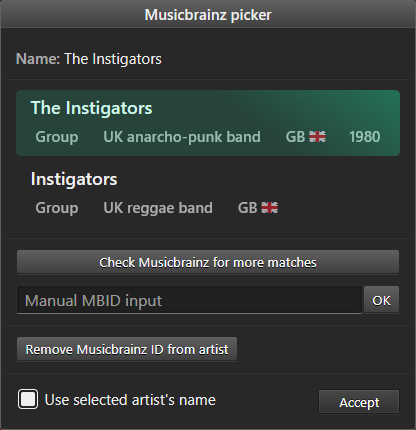
The selected artist will show up in green.
You can click Check Musicbrainz for more matches if the correct artist doesn't show up initially.
Failing that you will have to manually source the MBID from Musicbrainz.
I've provided a button for removing the MBID from an artist, but a situation where you'd need this is highly unusual.
On the bottom left you'll see a checkbox for Use selected artist's name, leaving this enabled will overwrite the artist's name in the planner.
For collaborations
It's not just artists that benefit from this change.
You can now specify the MBID of each collaborator, without having to manually add them to the main artist list.
The video, below, quickly demonstrates how to configure a collaboration.
The text input for the name of the collaborator is used when looking up the MBID, and once you've selected the matching artist the MBID button will be displayed with a green tint.
I've also changed it so clicking the (X), that removes collaborators, will now reset the 1st and 2nd collaborators.
Import stage times editor rework
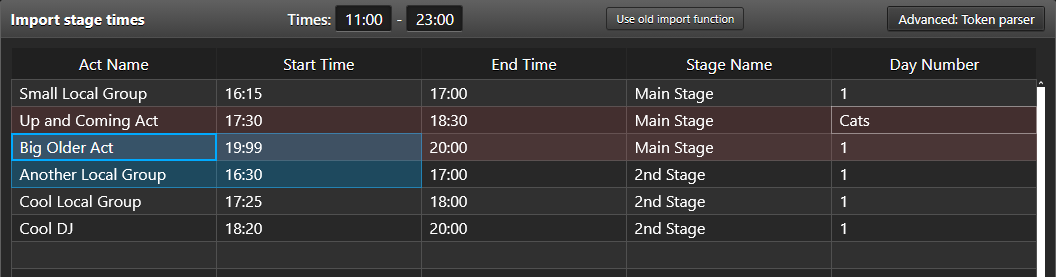
The editor has been updated, to fix some annoying issues that I'd occasionally encounter.
Previously it recycled a large amount of text inputs, which made scrolling, and styling, a little tricky or laggy.
The new version is canvas based, like your favourite web based spreadsheet.
This means it's largely just an image that gets drawn to look like the older editor, and when you click a cell an actual text input moves there.
In the process of this change I've fixed a couple of bugs, and improved area selection.
You can now tab through the cells within a selection, and stuff.
When an error is found the row is displayed in red, and if you jump to a line, from the View errors section, it'll highlight that row yellow for a moment.
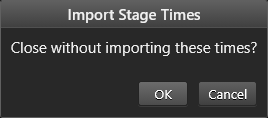
And finally, perhaps with a huge sigh of relief, if you click outside the editor, when there's data in it, you'll be asked to confirm if you want to close it!
Other changes in the creator
Quick access to Stage Info
Clicking a stage title will open the Stage Info window for that particular stage & day.
Adjust Performance Times refresh
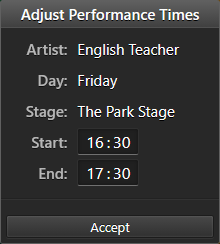
The Adjust Performance Times window has had a minor refresh, to improve clarity.
You can use this window for fine grain adjustments, down to the minute.
It's available via the context menu, for performances and stage closures.
Invisible updates
Rewritten windows
Many of the windows in the creator have been rewritten, using cleaner, modern code.
This change should be transparent to users, and not affect any functionality.
Some modernisation
The build system for the creator has been modernised.
This change offers users a small improvement to the page load speed.
What's coming next
No idea. I'd love some feedback and direction.