 qplanner
Introducing Event Filtering
A powerful upgrade to streamline the planning experience.
Event filtering
Ok, this is a big one.
Only going for one day? Not interested in any of the performances on a couple of stages?
Well now you can hide them.
Previously the only place where days & stages could be hidden is the PDF output, which was very handy, but why shouldn't you be able to do that on the website, too?
I've written a help page that goes over all of the functionality: View it here
I'll quickly go over it here, too.
The Event Filters drawer
Accessible from the menu, the new event filters drawer allows you quickly manage your filter.
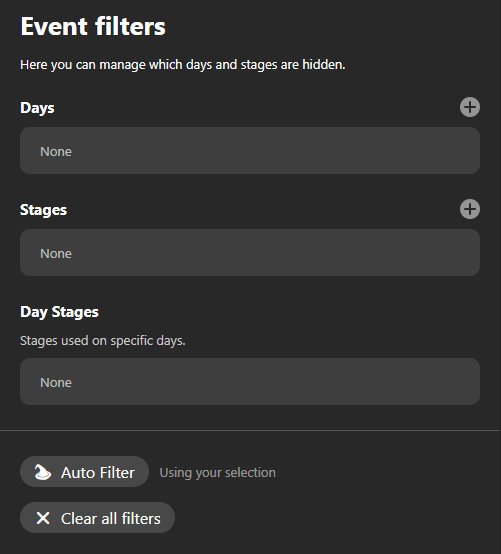
(The new Event Filters drawer. Shown with no active filters.)
Click the (+) buttons to add a day or stage.
To remove a day or stage, simply click on it.
Auto filter
The Auto filter button will hide all days and stages that do not have a selected performance on them.
If you use the Auto select function first followed by Auto filter, you should be able to print a customised planner within just a few minutes of opening the planner.
Stage Labels
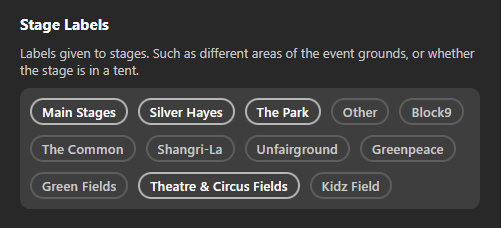
Some events also make use of stage labels.
These labels can be used for many helpful purposes, such as grouping stages by the area they're in, or to label tents/indoor stages and low capacity areas.
When an event uses stage labels a section for them will show up in the Event Filters drawer where you can click to toggle their inclusion.
Filtering elsewhere
Via the Stage Overview drawer
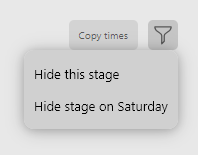
You can also add stages to the filter via the stage overview drawer.
The filter menu here is the only place where you can hide a stage on a specific day.
To access a stage overview click on a stage's title.
Hiding days on desktop
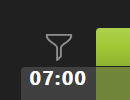
On desktop, you can hover over the space to the left of stage titles, above the times, and a filter icon will appear.
Clicking it will display a menu where you can confirm hiding that day.
This isn't available on mobile to avoid clutter and confusion.
Filters and selection sharing
When sharing a selection link your event filter will be included, if you have Include my selection selected.
You do not have to have any selected performances for this to work.
Printing
This change also means that print options have been cleaned up. Removing the day selector, and hide non-selected performances options.
They've been replaced with a simple checkbox for including your current event filter.
Other improvements
Brace yourself, there's a lot this time.
-
[Experimental] Planners that have not adjusted the global colour theme will automatically switch theme to light or dark based on your browser/OS preference
You can toggle the theme from the display options menu, but your preference is not currently saved.
This change could mean the colours of some planners look out of place. I am eager for feedback on it.
-
Inital support for the accessiblity option
Reduced Motion
When the reduced motion preference is detected most animations will happen instantly, and others will be a simple fade.
Please let me know if any elements could still be an issue when viewing a planner! -
Remember the last used view style (Planner, Plain times, Selection feed)
-
Minor improvement to avoid stale pages in browser caches
Pages are asked to be cached for an hour, so F5 may still be your friend!
The creator will try to help bypass the cache when you're given a link after saving -
[creator] Added a counter to show how many artists are in your list in the Add/Remove artist list window
(This doesn't show the number that will be successfully added, so it may be less if some artists are already present in your planner) -
[PDF] Improved rendering artist labels
-
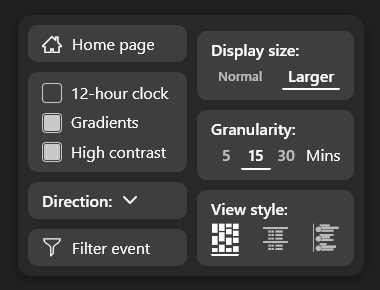
Split the desktop menu two columns, for ease of access
-
Made the granularity selector more compact
-
Added a pending indicator to the top of artist info pages
-
Added click to view artist info on the selection feed
-
Fixed the colour of placeholder text
-
Maybe fixed long pressing on artists not always showing info on mobile
-
Avoid browser scrolling conflict when using the native scrollbars on elements that can by scrolled by clicking + panning
-
Increased network timeout to 10 seconds
-
Changed the qplanner & paypal links on the mobile menu sheet, to save some space
-
Fix recycling stage overlaps when their container doesn't change size
-
Fixed (most) stage closure times spilling on to a new line when a stage narrow
-
Fix the order of artist logos and labels, in the plain times view, on mobile
-
Fixed resizing the page whilst an overlay is open that could stop buttons from responding
-
Round the top left of the stage slats (This feels like something that used to exist, and was somehow lost)
-
Added a context menu (It's only used by filtering so far)
-
Floating mobile footer minor fixes
-
Minor optimisations
What's next?
Surely stuff in the creator. Surely.