Event Filtering
Days and stages can be hidden to provide a more focused experience that reflects your interest and attendance.
You can filter out:
- Days
- Stages across the event
- Stages on specific days
- Stages by labels they have
If you've already selected who you're planning to see, then the quickest way of filtering the event is use the Auto filter option, from the Event Filters drawer.
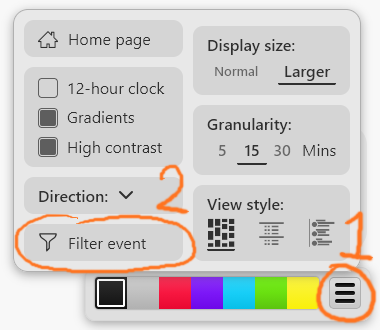
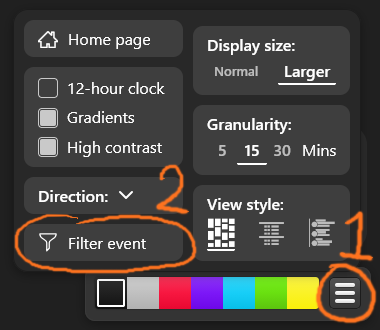
The Event Filters drawer
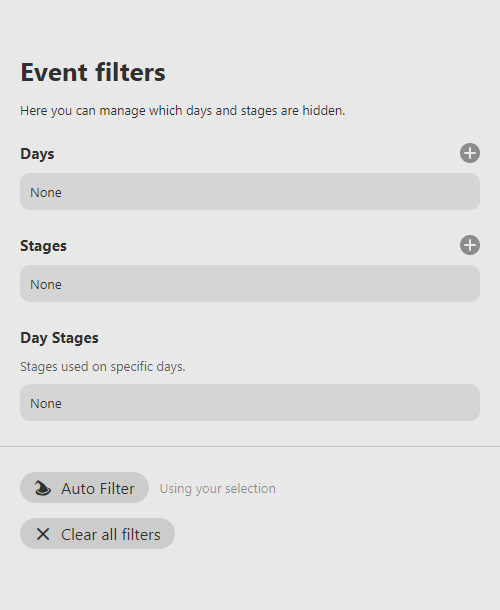
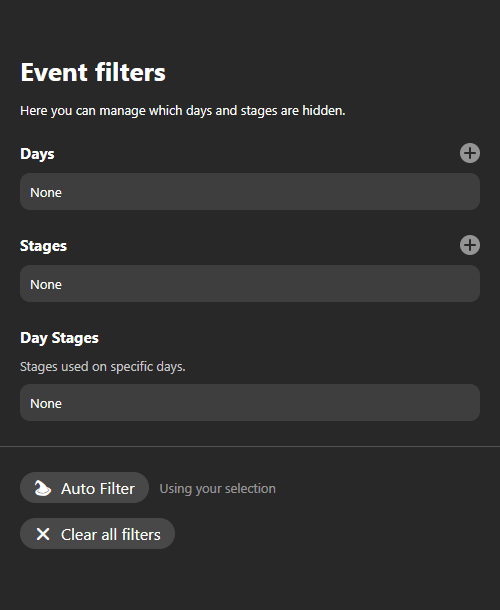
The (+) button allows you to add additional day or stage filters.
Clicking an existing day or stage, in a section, will remove the filter.
Single day events will not a have a Days section.
Hiding a day on desktop
Desktop users can also hide a day by clicking the filter icon that appears to the left of a day's stage titles.
This feature is not enabled in the mobile view to avoid clutter and confusion.
Day specific stage filers
To add a day specific stage filter, please use the filter button on the stage overview for that stage.
Auto filter
The Auto Filter button will instantly create a filter that hides all days and stages that have no selected performances on them.
This will replace any filters you currently have.
Clearing all filters
To quickly remove all of your event filters, all you have to do it click on the Clear all filters button, and confirm your choice.
Stage labels
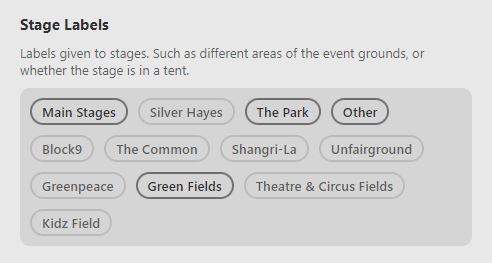
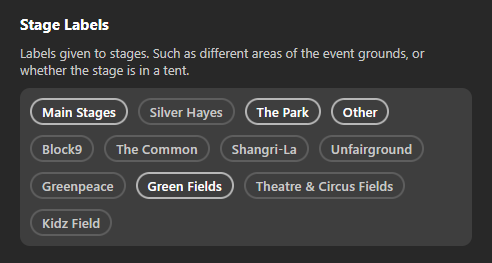
Events that make use of stage labels will have an extra section where you can toggle their inclusion.
Stage labels can be used for many things. For example: defining areas of the event, or indicating if the stage is in a tent or low capacity area.
Click a stage label to toggle the stages associated with it.
When hidden the stage label will looked faded out.
Stage labels can also be hidden via the filter menu on stage overviews.
Sharing a filter
Event filters are included when using Share selection / Share this planner, as long as Include my selection is selected.
You don't need to have any performances selected to be able to share your filter.