Artist Info / Musicbrainz
Providing accurate artist information to users is an important feature of qplanner.
Whilst qplanner uses a blend of sources for this information, it primarily relies on Musicbrainz to provide a unique ID for each artist.
Once qplanner has the ID the creator can correct any spelling or formatting issues with the given name, and when viewing a planner, it allows users to view artist info without any mix-ups that can happen with similar names.
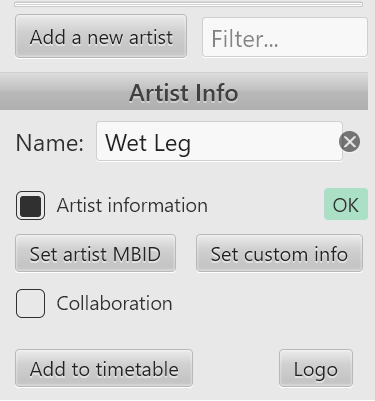
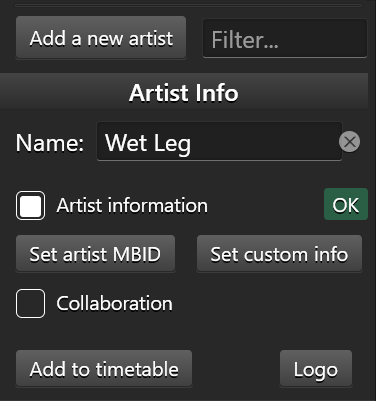
When you edit the name of an artist, or add a new one, the creator will automatically check with qplanner's server, to see if it recognises the name.
Indicators in the Artist List
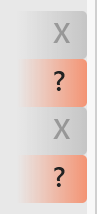

In the artist list you'll see ? or X next artists that do not have a Musicbrainz ID assigned to them.
The ? means it's missing, whereas the X denotes that artist info is disabled for this artist.
Acts that are a collaboration will display with a C, and the colour will be green if all collaborators have valid Musicbrainz IDs, otherwise it will be red.
You can use the search filter to find artists without information by entering ?
Indicator for the selected artist
To the right of the Artist information checkbox you'll see OK, Not found or Unsure.
Not found just means that qplanner doesn't have knowledge of this act, it's very likely that Musicbrainz will, so it'll be quick to fix.
Unsure will be shown if creator has several matches for that name. You'll have to pick the correct one.
Whilst the vast majority of acts will be shown as OK, you may wish to confirm it has picked the correct matches.
If you have Artist Information turned off for an act then there will be no indicator to display.
Set artist MBID
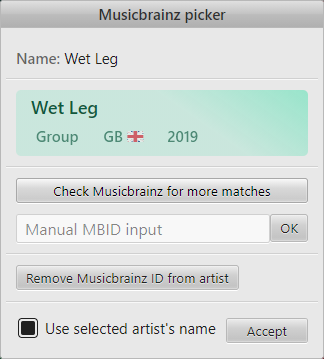

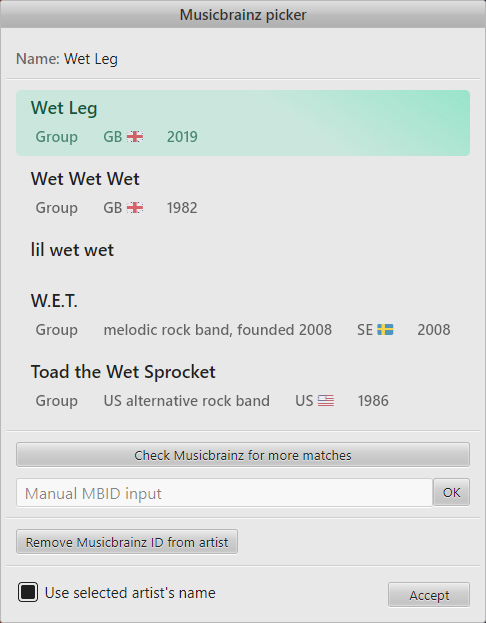
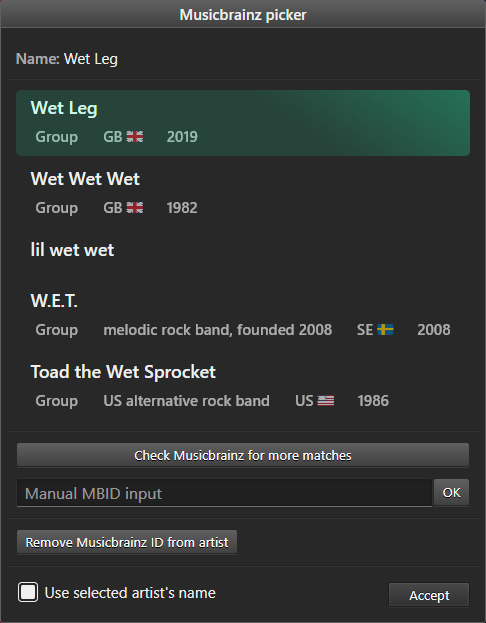
To change, or verify, the MBID for an artist, click Set artist MBID button, and the above window will appear.
At the top will be current name of the artist, to help you compare with the data displayed below.
Under that will be a selectable list of matches, with some basic info about each to help you pick the correct one.
The list of matches may only have 1 artist when you open the window, as it uses data that qplanner has on hand.
If you press the Check Musicbrainz for more matches button it'll ask Musicbrainz, and likely come back with many more similar artists.
This may automatically happen upon opening the window if qplanner doesn't have any matches for the given act name.
Manually finding and entering an Musicbrainz ID
Should the correct artist not show up, you can manually input a musicbrainz ID, and then select that match.
To find out the musicbrainz ID of an artist, please head to Musicbrainz.
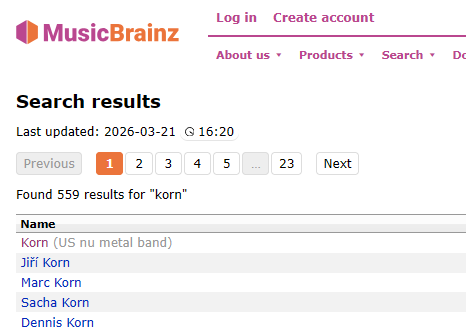
Once you've found their page on the website, their ID will be in the page URL. For example: https://musicbrainz.org/artist/ac865b2e-bba8-4f5a-8756-dd40d5e39f46
In the rare off chance that you've added an ID to act which doesn't need one, there is a button for removing it. However it is better to just uncheck Artist information for the act instead.
Renaming the current act
At the bottom of the window is the checkbox Use selected artist's name.
This is enabled by default, and will replace the current act's name with the name of the match you select when you click Accept.
In general this is the correct thing to do.
Labels can be used if you need to add additional information to a performance, such as DJ Set, or Country exclusive appearance etc.
Should your performance be a collaboration, and not a super group etc, then please use the collaboration option to correctly define the act.